Saturday, May 27, 2017

Change New Email Notification Sound for Windows 10 Mail App

Haven't you got any notification when a new email arrives in Windows 10 Mail app? In this tutorial we'll show you how to easily change / customize the new email notification sound for Windows 10 Mail app.

How to Change New Email Notification Sound for Windows 10 Mail App?
  1. Open the Control Panel in Large icons or Small icons view, and then click Sound.
  2. In the Sound settings window, select New Mail Notification under the Program Events section.
  3. Under the Sounds drop-down list, choose your preferred sound and click OK.
  4. Now restart Windows 10 Mail app. Windows 10 Mail app will play the new email notification sound when a  new mail message arrives.

Wednesday, July 13, 2016

How to Login to Windows 10 if Forgot Microsoft Account Password

Locked out of Windows 10 computer and couldn't remember your Microsoft account password? Don't worry! Even if your Microsoft account is hacked, you can easily bypass Windows 10 login and obtain access to your computer without data loss. Here's 2 simple ways to help you login to Windows 10 if you forgot Microsoft account password.

Method 1: Reset Microsoft Account Password Online

If you use a Microsoft Account of any form to login to the computer, you can use the Microsoft Account Password Reset page to prove your identity and reset your password. You'll need access to a phone number or alternate email address already known on your account to verify your ownership.


 If you're completely locked out of your own computer, you can perform the Microsoft account password reset steps from your phone or another working computer.

Method 2: Offline Convert Microsoft Account to Local Account

If your computer is offline or you're unable to reset your password online, there is a simple way to convert your Microsoft account to local account without logging into Windows 10. Here's how:

To get started, create a PCUnlocker Live CD from another computer you still have admin access to.

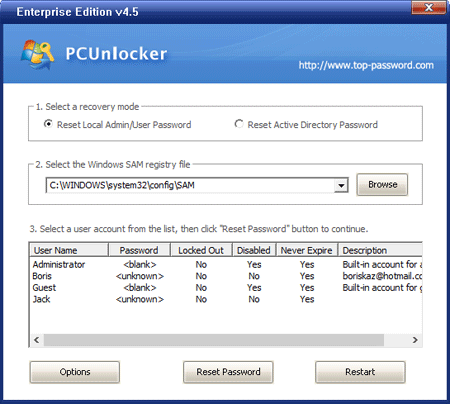
Boot your Windows 10 computer from the CD. Once the PCUnlocker program loads up, select a local account linked to your Windows Live ID, and click Reset Password button.


Click Yes to confirm you want to change the Microsoft account to local account and remove the local user password. Reboot and take out the CD, you can then see the converted local account at Windows 10 logon screen, click that account and you can login without a password!

Thursday, May 26, 2016

How to Recover Windows 10 Password with Installation Disc

So you forget the administrator password and couldn't log on to Windows 10, this article will guide you to recover Windows 10 password without any reset disk or third party software. This trick based on the substitution of some programs that can be used during logon screen with command prompt program (cmd.exe). Usually it's Sticky Keys(sethc.exe) and Utility Manager(utilman.exe).

How to Recover Windows 10 Password with Installation Disc?

Boot  your computer from Windows 10 installation disc. When the Windows Setup screen opens, press SHIFT + F10 to open the Command Prompt.

At the Command Prompt, you can easily replace the sethc.exe file with cmd.exe. Just run the following commands one by one, replace d:\ with the actual drive letter of your Windows 10 partition.

copy d:\windows\system32\sethc.exe d:\ 
copy /y d:\windows\system32\cmd.exe d:\windows\system32\sethc.exe
 
 
When it's done. Cancel Windows Setup and eject the install disc. Reboot your computer.


 When your computer reboots to Windows 10 logon screen, press the SHIFT key 5 times in a row. The Command Prompt will open in administrative mode. Run the following command and you can reset your forgotten password quickly. Replace username with the name of your actual account, and newpassword with your desired password.

net user username newpassword


 Now close the Command Prompt and you'll back at the login screen. You can login with your new password. Now you've successfully reset forgotten Windows 10 password.


Monday, January 18, 2016

Fix "Windows cannot be installed to this GPT / MBR disk"

"Windows cannot be installed on this disk. The selected disk is of the GPT partition style."

During Windows setup, you might get the error message that says your selected disk is not GPT or MBR partition style. In this tutorial we'll show you how to convert your disk to GPT or MBR partition style so you can install Windows smoothly.

Fix "Windows cannot be installed to this GPT / MBR disk"

1. Boot your computer from Windows installation DVD again.

2. When it boots to the Windows Setup screen, press Shift + F10 key simultaneously on your keyboard to open the Command Prompt window.


3. In the Command Prompt, type diskpart and hit Enter.

4. Type list disk and hit Enter. You should be able to find the disk number of your local hard drive.

5. Type select disk 0, replacing 0 with the disk number of  hard drive you want to convert partition style for.

6. Type clean to erase all the partitions for your selected hard disk.

7. Type convert gpt to convert your disk to GPT partition style. If you want to convert to MBR partition style, type convert mbr instead.

When it's done, close the Command Prompt. You can then install Windows without getting the error of "Windows cannot be installed on this disk".

Wednesday, October 7, 2015

What To Do If You Forgot Windows 10 Sign-in Password

Windows 10 allows users to sign in with a local account, Microsoft account, PIN or gesture-based picture password. What to do if you're locked out of your computer and couldn't login with any sign-in options?

If you can recover access to your local administrator account or Microsoft account, you can then reset a lost PIN or picture password from PC settings in Windows 10. In this tutorial we'll show you how to remove Windows 10 forgotten password for Microsoft account and local account.


Things You Will Need:


For the purpose of resetting Windows 10 password, you would need to have a PCUnlocker bootdisk(CD or USB drive). This can be created from another Windows or Mac machine.


How to Remove Forgotten Windows 10 Sign-in Password?


First of all boot your Windows 10 machine from PCUnlocker bootable media.

Once you boot it from the media, the computer will load the WinPE environment from the media and finally launch the PCUnlocker utility.


Now you should see all local accounts which were set up on your Windows 10 installation. Choose the built-in administrator account and click on "Reset Password" button. This will remove your forgotten password in no time.

If you've set up a Microsoft account with your PC, you'll see a local account which is linked to your email address. Choose that account and click on "Reset Password". The program will switch your Microsoft account back to local account and clear its password.

Remove the media from your computer and restart. You can then log on to Windows 10 without typing a password! So this is how you can regain access to your computer in case you forgot Windows 10 sign-in password.


Wednesday, September 23, 2015

Windows 10 Password Recovery on Microsoft Surface Pro 3

What to do if you forgot Windows 10 password on Microsoft Surface Pro 3? Is there a way to recover / reset the password without reloading Windows? This tutorial will show you how to reset Surface Pro 3 password with a boot USB drive.

Part 1: Create a UEFI bootable USB drive
  1. First you have to download the ISO image of PCUnlocker Enterprise. Once you've downloaded the image, you'll need to unzip it to a folder on your local hard drive.
  2. Download and install the free burning tool – ISO2Disc.
  3. Insert a USB thumb drive and launch the ISO2Disc program. Click on Browse button to locate the pcunlocker.iso file that was extracted from your downloaded file.
  4. Click on "Burn to USB Flash Drive" option and select "GPT (required for UEFI boot)".
  5. Click on Start Burn.
Part 2: Boot Surface Pro 3 from USB
  1. Now that you have created a UEFI bootable USB, insert it into the USB port on your Surface Pro 3 tablet.
  2. Press and hold volume-down button, then press and release the power button. Finally, release the volume-down button once the Surface logo appears.
  3. At this point, the Surface will boot from the USB device.
Part 3: Windows 10 Password Recovery
  1. Once booted to the PCUnlocker program, you should see a list of Windows user accounts detected in your Windows 10 installation.
  2. Select an user account and click on "Reset Password" button.
  3. It will remove your password and automatically unlock the account when it was locked out or disabled.
  4. Restart your tablet and remove the USB drive. This time it will boot as normal and you can then login to your Windows 10 system without typing a password!

Sunday, September 20, 2015

How to Turn Off or Disable PIN Login in Windows 10

How to disable PIN logon in Windows 10? Once you've set up a PIN, you might find out there is no straightforward option to remove it. You have to go through the PIN login reset procedure to turn off PIN login. Here's how to remove Windows 10 PIN:

  1. Click on the Windows icon in the left-hand corner of your screen, you'll open up the Start menu. Click on Settings.
  2. Go to Accounts -> Sign-in options, click on the "I forgot my pin" link.
  3. A dialog box will open, enter in your account password (not your PIN). If you use a Microsoft Account to set up the PIN, you have to enter the password of your Microsoft account.
  4. After your password is accepted you will be prompted to create a new PIN, instead click Cancel.
  5. The PIN will now be removed from the account and you'll see the PIN logon disappear from the sign-in options. That's it!