Wednesday, October 7, 2015

What To Do If You Forgot Windows 10 Sign-in Password

Windows 10 allows users to sign in with a local account, Microsoft account, PIN or gesture-based picture password. What to do if you're locked out of your computer and couldn't login with any sign-in options?

If you can recover access to your local administrator account or Microsoft account, you can then reset a lost PIN or picture password from PC settings in Windows 10. In this tutorial we'll show you how to remove Windows 10 forgotten password for Microsoft account and local account.


Things You Will Need:


For the purpose of resetting Windows 10 password, you would need to have a PCUnlocker bootdisk(CD or USB drive). This can be created from another Windows or Mac machine.


How to Remove Forgotten Windows 10 Sign-in Password?


First of all boot your Windows 10 machine from PCUnlocker bootable media.

Once you boot it from the media, the computer will load the WinPE environment from the media and finally launch the PCUnlocker utility.
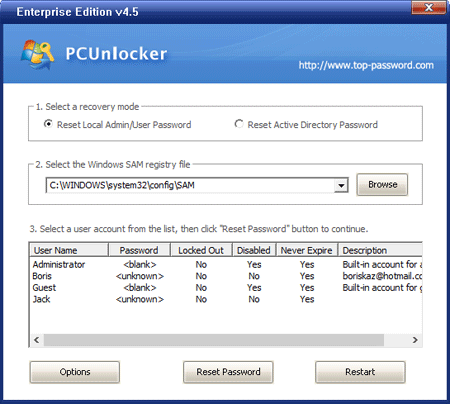

Now you should see all local accounts which were set up on your Windows 10 installation. Choose the built-in administrator account and click on "Reset Password" button. This will remove your forgotten password in no time.

If you've set up a Microsoft account with your PC, you'll see a local account which is linked to your email address. Choose that account and click on "Reset Password". The program will switch your Microsoft account back to local account and clear its password.

Remove the media from your computer and restart. You can then log on to Windows 10 without typing a password! So this is how you can regain access to your computer in case you forgot Windows 10 sign-in password.


Wednesday, September 23, 2015

Windows 10 Password Recovery on Microsoft Surface Pro 3

What to do if you forgot Windows 10 password on Microsoft Surface Pro 3? Is there a way to recover / reset the password without reloading Windows? This tutorial will show you how to reset Surface Pro 3 password with a boot USB drive.

Part 1: Create a UEFI bootable USB drive
  1. First you have to download the ISO image of PCUnlocker Enterprise. Once you've downloaded the image, you'll need to unzip it to a folder on your local hard drive.
  2. Download and install the free burning tool – ISO2Disc.
  3. Insert a USB thumb drive and launch the ISO2Disc program. Click on Browse button to locate the pcunlocker.iso file that was extracted from your downloaded file.
  4. Click on "Burn to USB Flash Drive" option and select "GPT (required for UEFI boot)".
  5. Click on Start Burn.
Part 2: Boot Surface Pro 3 from USB
  1. Now that you have created a UEFI bootable USB, insert it into the USB port on your Surface Pro 3 tablet.
  2. Press and hold volume-down button, then press and release the power button. Finally, release the volume-down button once the Surface logo appears.
  3. At this point, the Surface will boot from the USB device.
Part 3: Windows 10 Password Recovery
  1. Once booted to the PCUnlocker program, you should see a list of Windows user accounts detected in your Windows 10 installation.
  2. Select an user account and click on "Reset Password" button.
  3. It will remove your password and automatically unlock the account when it was locked out or disabled.
  4. Restart your tablet and remove the USB drive. This time it will boot as normal and you can then login to your Windows 10 system without typing a password!

Sunday, September 20, 2015

How to Turn Off or Disable PIN Login in Windows 10

How to disable PIN logon in Windows 10? Once you've set up a PIN, you might find out there is no straightforward option to remove it. You have to go through the PIN login reset procedure to turn off PIN login. Here's how to remove Windows 10 PIN:

  1. Click on the Windows icon in the left-hand corner of your screen, you'll open up the Start menu. Click on Settings.
  2. Go to Accounts -> Sign-in options, click on the "I forgot my pin" link.
  3. A dialog box will open, enter in your account password (not your PIN). If you use a Microsoft Account to set up the PIN, you have to enter the password of your Microsoft account.
  4. After your password is accepted you will be prompted to create a new PIN, instead click Cancel.
  5. The PIN will now be removed from the account and you'll see the PIN logon disappear from the sign-in options. That's it!

Thursday, September 17, 2015

How to Bypass Windows 10 Microsoft Account Password After Forgotten

What to do if you forgot your Microsoft account password in Windows 10? If you're unable to reset the password online from Microsoft official website, you'll lose access to your computer. Here we'll show you another way to bypass Windows 10 Microsoft account password with a boot CD.


How to Bypass Windows 10 Microsoft Account Password After Forgotten?


First of all, you have to use another computer to make a boot CD. Download the CD image of PCUnlocker and save it to any folder on your local hard drive, then use the freeware ISO2Disc to burn the ISO file to a blank CD (or USB flash drive).


Put the CD into the optical drive of your locked Windows 10 PC. To boot from the CD, you might have to enter into the BIOS (UEFI) Setup and set the boot sequence to use CD/DVD-ROM as the first boot media.

After booting successfully from the CD, you'll be taken to the PCUnlocker program. From there you will see a list of all the local accounts available on your computer. Please note that one of your local accounts was automatically associated with your Microsoft account, and you'll find out your email address displayed under the Description column.


Select the associated local account and click on Reset Password button. The program will switch your Microsoft account to local account and afterwards reset the local user password.

Take out the CD and reboot your computer. You can then log back into Windows 10 without entering a password. That's it!